






How to Save From Instagram Without an App in 2026
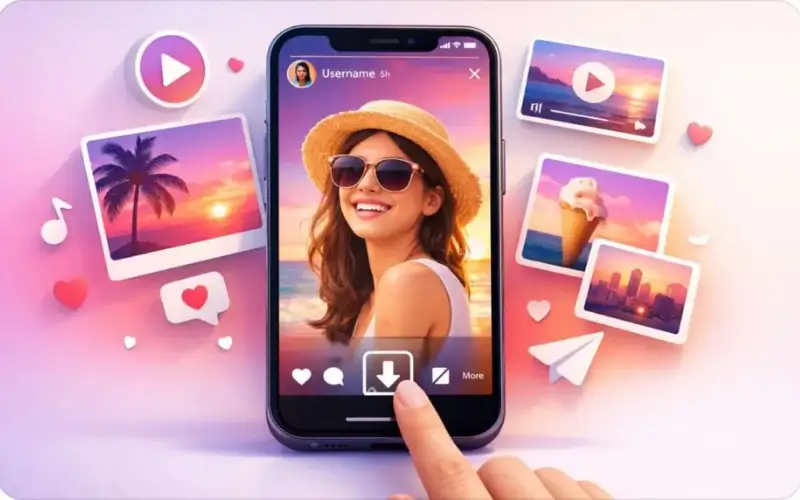
The bookmark feature on Instagram is similar to saving, but nothing gets saved in the Instagram gallery. It remains active in the app, where you can access it until you turn it off, and it will be associated with your account. If you want the original photo or video file on your phone or laptop, and don’t want to install another app or allow an extension to access your data, then the link in the post, plus the browser you already use will suffice.
Why Instagram’s Own Save Button Doesn’t Give You a File
The Saved folder contains references and not copies. On tapping the bookmark, Instagram will save the post to the Saved section of your profile and your camera roll and Downloads folder will not contain it.
This is the reason posts are lost once they have been saved. When a creator has deleted a Reel, or moved it to an archive, or switched to a private account with which you are not following, the corresponding entry in your Saved folder becomes blank or it is removed and you have no local copy.
Stories don’t get a bookmark at all. They will only appear 24 hours after posting if the creator adds them to a Highlight.
The standard solution is screen recording, with its obvious expenses. It will save whatever is displayed on your screen at that moment, meaning that you will have the status bar (time and battery) the like/comment button, the caption and any notification that would appear halfway through. It also captures at the resolution of your screen rather than the video file, so it will appear softer than the original – and the audio may be quiet or non-existent if your phone is on silent. A link-based download is a download of the actual file served by Instagram, and not including any interface on top.
What You Need Before You Start
There’s not much more to it than that: the link to the post and a browser, like Chrome, Safari or Edge. No installation or account to create.
The owner of the post must be a public account. A downloader will view Instagram as a logged out person does, meaning that if the account is private, then the tool will not be able to access the post even if you follow the person who has the account.
No site requires your Instagram username or password in order to get a public post. Close the tab if asked to do so – all those details are enough to take over your account if they ask.
Have an idea of where you are going to store the files before beginning. On Android, Chrome will store in the Downloads folder, and most gallery applications will search it as well. The first time people try Safari on iPhone, they’re surprised when it doesn’t save into Photos, but instead into the Files app in Downloads.
How to Copy the Right Link From Any Post
On the Instagram App (Android and iPhone)
Tap paper plane share icon below post on Reels, photo posts and carousels, and tap Copy link. The option is located in the same spot in all three, so if you have done it on a Reel, you have a Carousel and just do it there.
Stories are a bit different. Tap on the Story and then on the three dots in the corner (this is in some versions of the app under the share icon), and select Copy link. If someone has posted five Story frames, that link will lead to the one you want, so copy that one.
On Desktop (Instagram.com)
Click on the post, it will open in a new window, and copy the URL from the address bar. The /p/ and Reel links are in a photo/carousel.
Common slip is copying still on someone’s profile grid. The URL in that case is instagram.com/username and it’s a link to the whole profile, so a downloader has nothing to download.
Saving Instagram Content Step by Step in Your Browser
After copying the link, open a downloader like save from instagram, paste the link in the field and hit Download. The tool reads the link and displays the contents of the link in a few seconds.
Look over the preview before saving any. A Reel might display the cover image and the video separately; if you select the cover image by accident, you will only get one still image and not the video.
Tap the download button below the preview on a phone. If the image or video does not download, but instead opens in a new browser window, long-click the image and select the download or save option that your browser provides. It then gets saved to Downloads on Android or to the Files app on iPhone. When you download the file, it will be saved directly in the Downloads folder of the PC or Mac computer.
How Each Content Type Saves Differently
Reels and Videos
A Reel or feed video is downloaded as an MP4 file with audio, in the resolution that Instagram provides. This is typically more crisp than a screen recording, but can’t be more than what the creator uploads.
Photos and Carousels
A carousel with 8 slides provides 8 separate files vs. 1 bundle. A preview of each slide is displayed, so you can save the entire set of slides or just the third photo you have come for.
Stories and Highlights
A Story can be saved only while it is live (24 hours after posting). When a Story ends up in a Highlight, it remains there until the user who created the Story removes it.
When Saving Doesn’t Work and What It Means
If you see the “private account” or “content not found” message on a post you see in your app, it is most likely a private account. You are able to see it because you’re following them, the downloader cannot. The link is fine, and if you paste it again, it will not affect the result. If someone delete a post, there’s a broken link, and all the tools will behave the same.
If the download completes on iPhone, but the video does not appear in Photos, open the Files app, tap Downloads, tap on the downloaded file, tap share, and then select Save Video or Save Image. Safari doesn’t do that step for you.
If the tool doesn’t find anything at all, look at what you copied. A profile URL and an expired Story link are both regular Instagram links but there’s nothing behind them to download.
Saving Content You Have the Right to Use
You only need to backup your own posts is the simplest case. If you need to bring down old Reels because the originals were deleted due to an old phone, it’s perfectly okay to do so by link!
When it’s not your content, it changes after it leaves your phone. Having a recipe Reel to watch at home in your kitchen is personal use, sharing the same Reel on your own account is republishing and requires the permission of the creator and must be credited. If not, the creator is able to file a copyright report and the platform will delete your post.
Read Also: ADDC Quick Pay Guide for Fast and Easy Bill Payment in Abu Dhabi